There are times when you may want to have a test copy of your WordPress, Joomla, Drupal, or other site. Or you may simply want to move your site from one folder to another. Doing either of these can be very involved with such things as copying files, databases, changing configurations, etc.
Softaculous, however has a new clone feature that makes this process much simpler. Since it leaves the original site in place initially, you can also simply clone your site in order to use it as a test environment and then delete it when done. Below is a quick step by step guide on how to clone your site with Softaculous.
We will be taking an example of a WordPress installation. We will clone the installation to a sub directory clone.
1) Login to Panel
- Go to your panel (e.g. cPanel’s url will be https://domain.com:2083) and login with your details.
- There click on the Softaculous Icon or Link.
- The Softaculous Enduser Panel will be displayed.
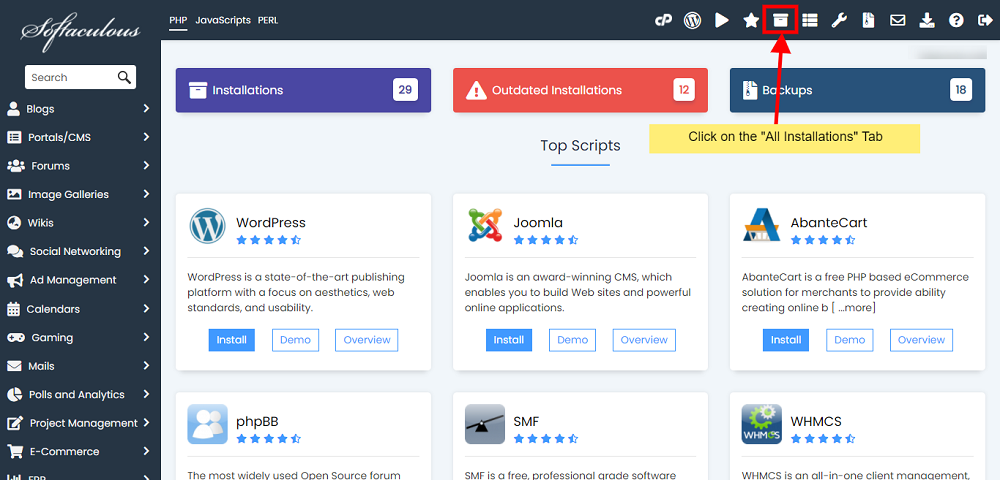
- Go to all installations page.
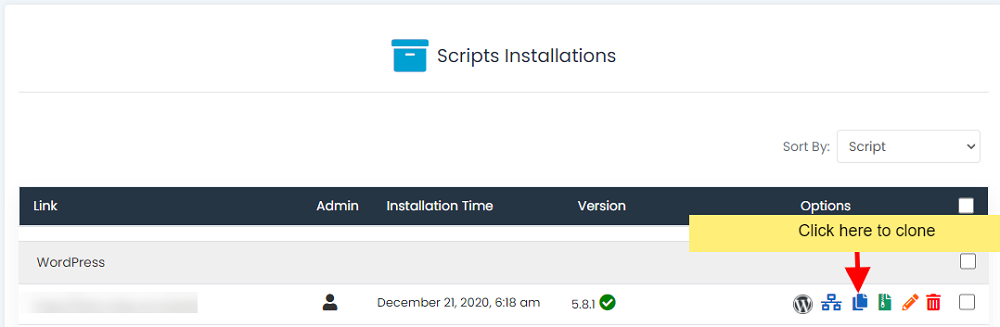
2) Choose the installation you want to Clone
- Click on the Clone icon next to the installation you wish to clone.
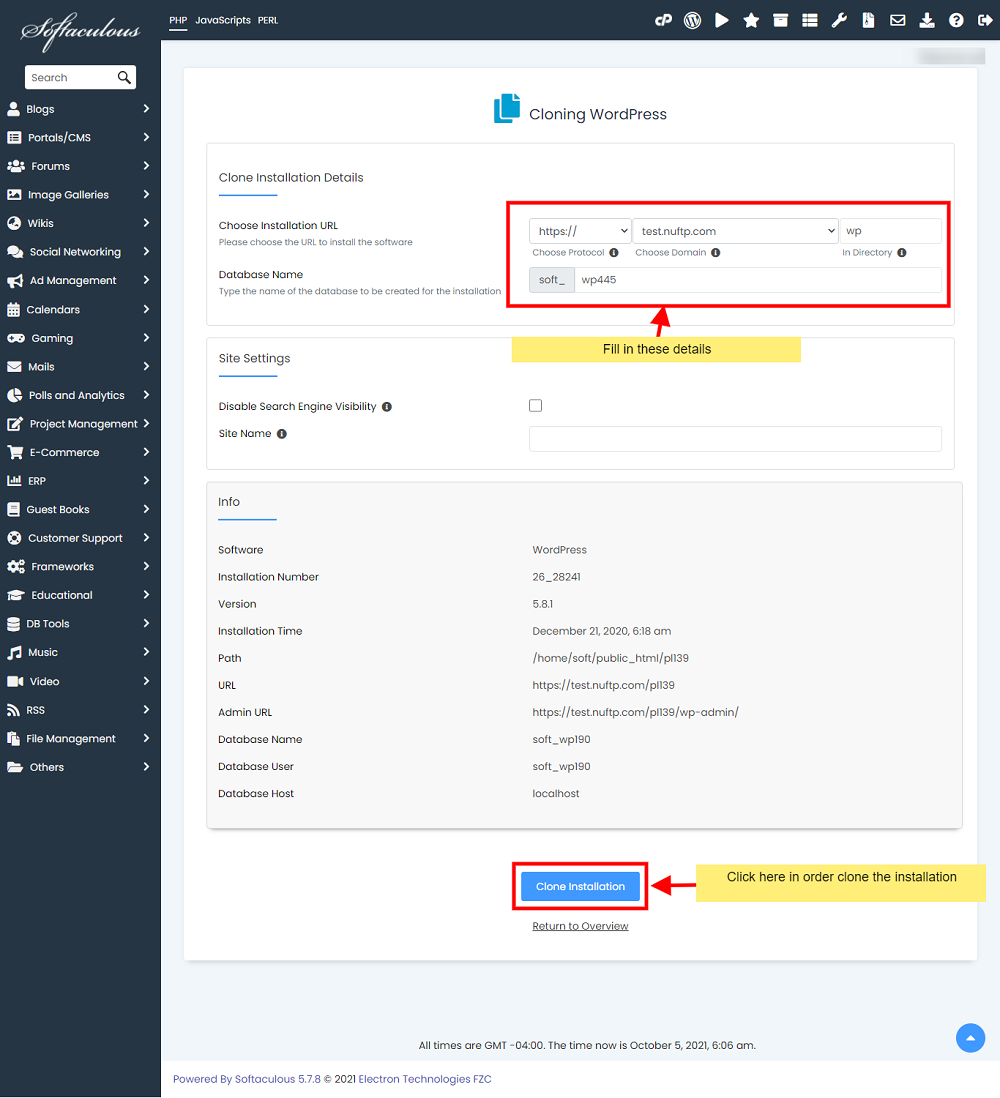
- The Clone page will appear with the current installation details and a form to fill in the details for the cloned installation.
3) Fill in the Clone Installation Details
- Fill in the clone installation details i.e. Choose domain, Directory, Database name, etc
- Click on the Clone Installation button and this should do the trick. The time taken may vary in accordance to size of your installation, So please be patient.
- That’s it !! You can now use this cloned installation to test the updates or any other changes you may want to test.
NOTE : You will receive the clone installation details via email (if the emails are enabled).
NOTE : The admin/user account login details will be the same as the source installation.